Displacements
Displacements are a special type of geometry in the Source Engine that are used for terrains. Wall Worm natively supports displacements and offers many advanced tools for working with displacements.
Key Features
- Build terrain inside 3ds Max
- Use standard 3ds Max design tools and modifiers to sculpt terrain
- Sew displacements that do not line up
- Paint blend texture alpha inside Max
Using WW Displacements
Before you use WW Displacements, please make sure to read this entire page. Please make sure to share feedback when you use the tool to help hasten development and enhance the tool.
General Workflow
The general workflow of Wall Worm Displacements is this:
- Create the brushes made of Quads to serve as the backbone of the displacements.
- Select the polygons (quads) of those brushes that should be converted to displacements.
- Create Displacements from the selection.
- Convert the displacements into a Sculpt mesh.
- Sculpt the landscape and paint on texture blending.
- Commit changes in the sculpt mesh by clicking the commit button in the modify tab.
You may want to review this document on Understanding Wall Worm Displacements.
Hints, Tips and Limitations
This section includes important information regarding the usage of the tool.
- Do not change the Displacement Topology
-
You should not do anything that changes the topology of the displacement. If you are unfamiliar with 3ds Max then that statement may seem fairly odd since the displacement is for making terrains... and you are changing the shape and "topology" as defined by common terminology. However, in 3ds Max, topology is defined as the positions, parameters, etc of specific faces and vertices which are referred to by specific numbers... topological changes will change the ordering/numbering of these vertices and faces.
- Earlier versions of Displacements allowed you to Quadrify the displacement. This is no longer possible without invalidating the sculpt mesh or displacement. Simply put, do not use the Graphite Toolbar function to Quadrify anymore.
- While the geometry of the displacement can be modified via modifiers and the poly sculpting, avoid actions such as Attach, Detach, etc.
- Modifiers you can use include Displace, Relax, Poly Select, Bend, Taper, FFD, etc. These kinds of modifiers do not change the number of vertices in the mesh and are allowed.
- Do not add/delete any vertices or faces to the displacements.
- Do not use Turbosmooth, MeshSmooth, MultiRes, Optimize, etc.
- Generally speaking, WW will not let you change the topology but if you manage to do that... you will mess up the displacement!
- The actual in-game texture is derived from the name of the material
-
The actual texture that will appear in Hammer and in-game is derived from the name of the material applied to the displacement. Changing the bitmaps that appear in the Max viewport do not change the textures used in-game unless you happen to change the name of the material (in the material editor).
- The current default texture is named nature/blendcliffgrass001a... which is why that texture appears Hammer after exporting.
- The path of the material you want to use must be used in the name--which is why the default material name is prefixed with "nature/".
- Sculpt Mesh Power cannot change after created
-
The power (resolution) of a sculpt mesh cannot be changed. If you need to change the power, you should commit your sculpt mesh and revert it to the displacement pieces, then change the individual pieces to the desired power. Changing the power may create gaps between displacements--remember to sew after changing power.
- The Sew function only works as intended between displacements of the same power.
-
You can sew displacements that have different powers... but the results are not what are intended... leaving some vertices from the higher-power mesh unmoved.
- The sew function only works on the currently selected displacements.
- Sew will only work if the base geometry of a displacement are aligned at the edge vertices--which is not always easy to do once you've started sculpting. You can move an individual displacement's brush face by clicking it's Move Mode button... or enter Move Mode for all brushes by clicking the Move Mode in Anvil.
The WW Displacement UI
This section outlines the purpose of each item in the WW Displacement Tool UI.
- Type
-
This menu will tell the tool what kind of displacement you are making. The default is Ground. I may add more preset displacements in the future.
- Ground is good for ground. (In beta versions, it was called "Planar")
- Hill is good for mountains, hills, cliffs and terrain that need to be sculpted in three dimensions above the ground. (In beta versions, this was called "No Bottom".)
- Open Hill has three displacements... a top and two sides opposite of each other.
- Ring has four displacements that go around all sides of a cube.
- Corner has two displacements that meet each other like the outside corner of a building.
- Bulge has three displacements that are like the Open Hill rotated 90 degrees or the Ring with one displacement removed.
- Cube is added just as an option, but it is probably unnecessary to use six-sided displacements. (This was called "Cubic" in the beta versions.)
- Power
-
Power controls the resolution of the mesh. The default is 2, which creates displacements with the most detail.
- Length, Width and Height
-
These settings control the dimensions of the displacement. For conveneience, you should only make displacements that are of the listed dimensions (and this UI only gives you those options anyway). The default is 512.
- Rows
-
This will create multiple rows of displacements.
- The number of displacements created is Rows X Columns.
- Columns
-
This will create multiple columns of displacements.
- The number of displacements created is Rows X Columns.
- Default Material
-
Click here to browse for the default material to apply to new displacements. If you do not choose one, the tool will automatically add a material that maps to the Source Material "nature/blendcliffgrass001a" .
- The default material is now saved between sessions. The default material is always saved in a Material Library called $materiallibraries\WallWormDisplacementMaterials.mat . The last material in that library is the default displacement material. You can manually edit that library as you desire.
- Create Displacement
-
Click this button to add the displacement objects to the scene. The power, size, rows and columns will control the output of these displacements.
- Select
-
When pressed, all displacements in the current selection will become the only objects selected (non displacements get removed from the current selection). If no objects are selected, then all displacements in the scene are selected.
- Hide
-
Hides all selected displacements. If no displacements are selected, all displacements get hidden.
- Show
-
Show all hidden displacements.
Edit Displacements
- Sculpt
-
This button will allow you to edit the shape of your displacements more easily by converting the selected displacements into a Sculpt Mesh. It will hide your actual displacements and create a sculpting object that you can sculpt with the normal Poly sculpting tools like Push/Pull, Relax, Noise, etc.
- Checking the Sculpt button lets you sculpt the displacements... but the action is not applied to your displacements until click the Commit button in the displacement's modify tab.
- If you don't like the changes to your displacements in a sculpt mesh, simply delete the sculpting mesh... you will exit Sculpt Mode and the original displacements will return as long as you haven't committed the changes.
- Paint Alpha
-
This button applies a Vertex Paint Modifier and sets it to paint on the Alpha channel of the vertices, allowing you to paint the blend alpha for the blend material..
- The viewport will only display textures properly if you are using an appropriate Direct X shader. The shader is called "blend_dxsas.fx" (pre Max 2014) and "blend_dxsas11_nitrous.fx" (Max 2014+). It is included with WW Displacements.
- The texture on your displacement is derived from the name of the material applied to it when exported to VMF.
- Display Walkable
-
When this checkbutton is on, the selected displacement(s) will display unwalkable faces on the displacement with a bright green overlay.
One important thing to understand is that the Display Walkable overlay works best with Triangulated displacements. You can triangulate a displacement or sculpt mesh when selected with the Triangulate button in the modify tab of the command panel. (Displacements created in newer versions default to Quads for easier modelling. You can revert to quadrify with the Qiadrify button in the modify tab.)
- Sew
-
This function is similar to the Sew command in Hammer. It will align vertices between displacements that are aligned next to each other. It does not work on the sculpt mesh in Edit Mode.
- Sew only works on the currently selected displacements.
- Desired results currently only come from sewing displacements of the same Power.
- Sew only works with displacements that are aligned perfectly on the grid.
- Sew only works with displacements--not with sculpt meshes.
- Planar Mapping
-
This function will apply a Planar UVW map to all the selected displacements. NOTE: for displacements, never change the mapping type to anything other than Planar!
Placement
- Move Mode
-
Move Mode will hide the sculpted displacements and instead show the underlying "brush" face. This lets you move the displacements more easily using various snapping types.
- Lock
-
When you press the Lock button, all selected displacements will get locked to their current location. This will keep you from accidentally moving them in the viewport.
- Unlock
-
When pressed, all selected displacements that have been locked will get unlocked.
Displacement Flags
This rollout will let you assign flags to your displacement. The options you can set are:
- No Phys
- No Hull Collision
- No Ray Collision
You can prefill the checkboxes with the flags in a displacement by selecting a single displacement and hitting the Get button.
Clicking the Set Flags button will set the flags from the UI on all selected displacements.
These flags are now available in the command panel modify tab, including lightmap scale and smoothing group.
Latest Articles
Tutorial: Nuclear Cooling Towers
How to create nuclear cooling towers with Displacements
Tutorial on creating nuclear cooling towers as displacements for the Source Engine.
Converting Displacements to Models
Steps on converting a collection of displacements to props.
Displacement Proxies
Displacement Proxies allow teams to work more efficiently with displacements in multiple files.
DX Display Shaders
Information on the DX shaders used by Wall Worm.
Displacements Fail to Export

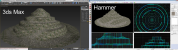
Some tips on troubleshooting displacements failing to export from Max into Source.
Displacement edge abutting other edges
Help understanding the VBSP compile warning about displacement edge abutting other edges.
Displacement Alpha Blending
Information on displacement alpha blending and the shaders you can use to visualize the blending.
Understanding Wall Worm Displacements
Overview on working with displacements in 3ds Max for the Source Game Engine.
Displacement Texture Scale Sometimes Incorrect
Understanding Displacement Blend Texture Scale
This page explains one cause for displacement materials to be scaled incorrectly in Source as well as the solution. You should use bitmaps of equal dimensions in both materials controlling the Blend material.
Exporting a Level from 3ds Max into Source
Brush Geometry, 3D Skybox, 2D Sky, Animated Textures
Video tutorial and sample file on exporting a 3ds Max scene into a Source VMF file with Wall Worm.